
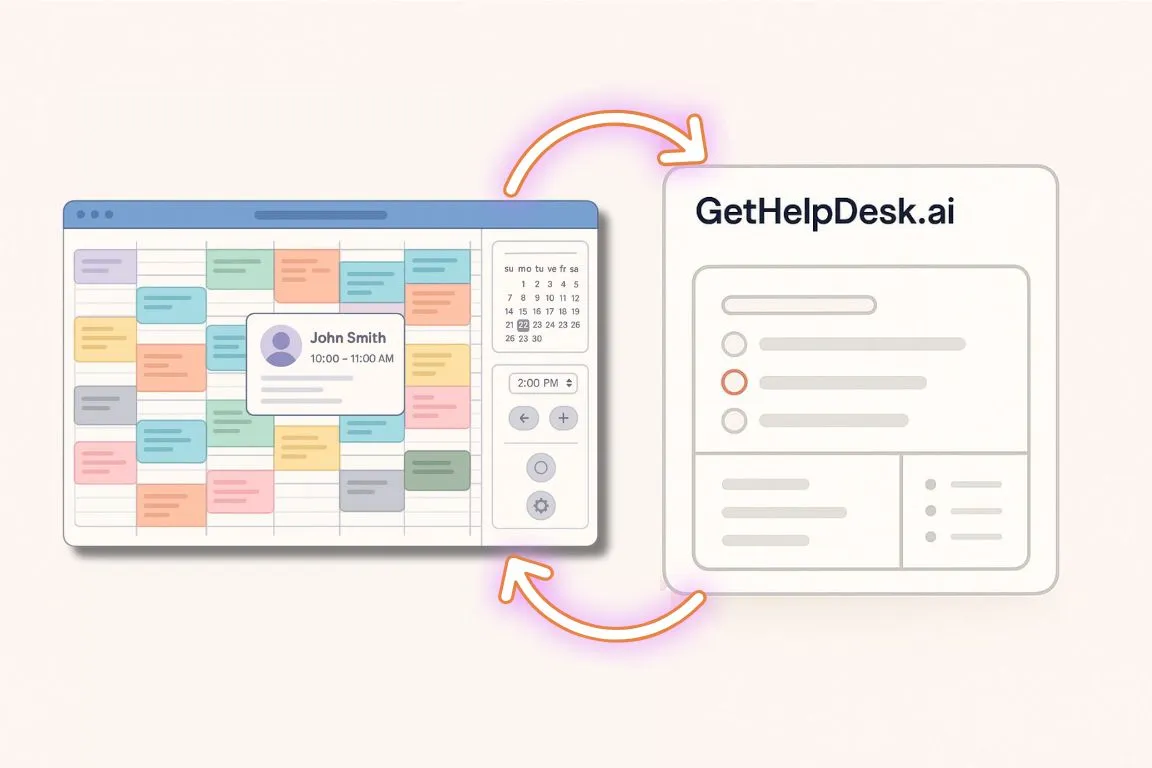
This guide walks through what setting up an AI receptionist in Open Dental actually involves: the keys, the API route, the scheduling rules you need to write down, the test calls, and what your team sees once it is live. If you want to know what the AI can do once it is connected, the Open Dental AI receptionist integration page has the full capability matrix, including every endpoint we use and what we never touch.
The short version: GetHelpdesk.AI connects through Open Dental’s published REST API, and we are listed as Authorized on Open Dental’s own vendor register. Nothing is written straight into your database. The connection itself is quick. Most of the setup effort goes into describing how your front desk schedules.
If you are still deciding which vendor to use, read what to look for in an AI receptionist for Open Dental first. This article assumes you have chosen and want to get it running.
Before you start
Have these ready before kickoff. Each one saves a round of back-and-forth later.
- Someone with admin rights in Open Dental. The API connection needs a customer key specific to your practice, and that step happens on your side.
- Your Open Dental version. Open Dental adds API methods over time, so it helps to know which version your database runs before anyone confirms a capability.
- Where your Open Dental server lives and what stays on overnight. This decides which API route makes sense (step 2).
- The person who knows your schedule best. Usually your office manager or lead front desk coordinator. They will spend the most time with us.
- Your appointment types and their lengths. A printout or screenshot of your appointment type list is enough to start.
- Your common phone questions. Hours, parking, new patient process, insurance you accept, what you say to someone in pain.
- A signed Business Associate Agreement. We sign one with your practice before the first live call.
Step 1: Issue the customer key
The Open Dental API authenticates with two keys. One is a developer key that identifies us as the vendor. The other is a customer key specific to your practice, and that is the one that grants access to your office’s data.
Because the key is tied to your practice, it is the one step in setup that needs someone in your office with Open Dental admin access. Plan for them to be available during kickoff.
Step 2: Choose your API connection mode
Open Dental offers three ways to reach the API, and you pick the one that fits how your office runs:
- Local API runs on a workstation and talks to the running Open Dental program. It is internal to your network and is not throttled, but that workstation needs to be on and the program open.
- API Service runs on your database server. It is also internal to your network and not throttled, and because servers usually stay on, it suits after-hours booking.
- Remote goes through Open Dental’s hosted endpoint via your eConnector. It works as long as your eConnector is running.
You do not have to bet everything on one route. GetHelpdesk.AI uses a cascading connection with automatic fallback, so if one route is unavailable, bookings carry on through another. Because the Local API and API Service run inside your network, an internet outage does not stop them from reading and writing your schedule.
If after-hours booking matters to you, read which route you run, and what is still powered on at 2am. It covers exactly what fails at night on each route.
If you searched for an “OpenDental API connection” and expected a long technical setup, this is most of it. The rest of the work is about your schedule.
Step 3: Walk us through how your front desk schedules
This is the step that decides whether the AI books the way your team does. We sit down with the people who answer your phones and go through:
- How you schedule today, including the unwritten rules (for example, “no new patient exams on Friday afternoons”).
- Your operatory and provider setup, and whether a provider moves between operatories during the day.
- The questions patients ask most on the phone, and how your team answers them.
- What should go to a person. Simple questions such as your hours are answered on the call. Anything that needs your team, such as a copay question, is handed to the right staff member with the full context.
- Your ASAP list, and how you want short-notice openings filled.
Bring the edge cases. The calls your team finds awkward are the ones worth describing in detail.
Step 4: Map appointment types, operatories, providers and schedules
Next, we map your Open Dental setup into the AI’s booking rules:
- Operatories and providers, so availability is checked against the provider, the operatory and the required length of the appointment, using Open Dental’s documented Slots endpoint.
- Appointment types and their time patterns. Open Dental stores provider time and non-provider time for each procedure. Say, as a hypothetical, your crown prep has the assistant seating the patient before the dentist arrives. The AI books against that shape, so it does not offer a slot your schedule would refuse.
- Blockouts, so the AI respects the time you have set aside for emergencies, meetings or specific procedures.
- Cancellations and no-shows. These go through Open Dental’s Break endpoint with the correct break type, and the patient can be sent to the Unscheduled List. Decide here how you want each handled.
If you run more than one location, this is also where cross-location patient lookup is set up, so a patient of your second office who calls the first can still be found on the call.
Step 5: Test it on your own schedule
Before any patient reaches the AI, call it yourself from your own phone, then open Open Dental and check the result there.
- Book a routine appointment. Open the schedule and check the patient, provider, operatory, appointment type and length.
- Reschedule it. Confirm the original appointment moved rather than a second one appearing.
- Cancel it. Check it was recorded as a cancellation, not a no-show.
- Confirm an appointment. Check that the confirmation status changed in Open Dental rather than a note being added.
- Try to book a slot that breaks a rule. A provider who is already busy in another operatory, or a slot inside a blockout. It should not be offered.
- Ask a question that needs a person. Check the handoff reaches the right staff member with the context attached.
The after-hours article above has a separate set of night-time tests, including what happens when workstations are switched off.
Step 6: Go live on your existing number
Your phone number does not change. Calls forward to the AI instead of voicemail. Most practices are taking live calls 5 to 7 days after kickoff.
Most practices start small: overflow calls during the day, after-hours calls, or both. Review the transcripts, adjust anything that sounds wrong, then hand over as much of the line as you want.
What your team sees after go-live
Your front desk keeps working in Open Dental as they do now. What changes is what they find there:
- Appointments booked on the call, in the right operatory with the right provider and type, the same as if a team member had entered them.
- Real confirmation statuses, set through Open Dental’s confirm endpoint.
- Cancellations recorded as breaks, with the patient on the Unscheduled List where you chose that.
- ASAP list patients offered short-notice openings, so a morning cancellation has a chance of being filled.
- A transcript and summary of every call, so nobody has to take notes or listen back.
- Handoffs with context for anything the AI should not answer, such as copay questions.
The website chatbot on the same plan books, reschedules and cancels into Open Dental too, so the same rules apply whether a patient calls or types.
Setup FAQs
Do you need a login to our Open Dental database? No. Everything runs through the Open Dental API using the developer key and your practice’s customer key. We never write directly to the database.
Do we have to leave a workstation on overnight? Only if you rely on the Local API alone, because it talks to the running Open Dental program on a workstation. The API Service runs on your database server, and the cascading connection falls back between routes, so most practices do not need to change their end-of-day routine.
Who on our team needs to be involved? Someone with Open Dental admin rights for the customer key, and the person who knows your schedule best for the front desk sessions and the mapping. Your dentist should approve how calls about pain or swelling are routed.
Can we start with after-hours calls only? Yes. Many practices start with overflow or after-hours calls, review the transcripts, and expand from there. Your number stays the same throughout.
Does setup cost extra? No. The Open Dental integration is included in your GetHelpdesk.AI plan at no extra cost.
Next steps
The plan is a flat $399 a month, with the Open Dental integration included. The full breakdown is on our AI dental receptionist pricing page.
If you want to see it book on an Open Dental schedule before you commit, book a 30-minute demo and bring your appointment type list.
Sources
- Open Dental API specification, Open Dental Software, Inc.
- Business Associates, U.S. Department of Health and Human Services, Office for Civil Rights
Related Posts
5 Dental Tech Innovations Changing Clinics
AI radiograph analysis, chairside crowns, teledentistry, implant robotics and AI phone answering: what each does and where the front desk comes in.
AI Readiness Checklist for Dental Practices
Do calls like "Do you accept Delta Dental?" fill your phones? This AI readiness checklist for dental practices covers routine calls, staff time and your PMS.
Solving Dental Staffing Shortages with AI
More than half of dentists recruiting front office staff call it very or extremely hard. What AI can take off a stretched team, and what it hands back.